Mastering environmental design is key to creating engaging Roblox experiences, and knowing how to add water to Roblox Studio is a fundamental skill for any aspiring developer. This comprehensive guide delves into the nuances of integrating water, from basic placement using the Terrain Editor to advanced customization of properties like color, transparency, and wave dynamics. Many US gamers, who often balance demanding lives with their passion for gaming, seek efficient yet powerful ways to enhance their creations. Adding realistic or stylized water can dramatically improve visual immersion, introduce new gameplay mechanics, and elevate a simple map into a vibrant, interactive world. We'll cover everything from optimizing performance for various devices, including the dominant mobile platform, to creative uses of water for puzzles and exploration. This article aims to provide actionable steps and expert insights, helping you overcome common challenges and build stunning aquatic environments that truly captivate your audience, making your game stand out in the bustling Roblox universe.
How do I add basic water using Roblox Studio's Terrain Editor?
Adding basic water in Roblox Studio is straightforward using the Terrain Editor. First, open your game in Studio. Navigate to the Home tab and click on "Terrain Editor." In the "Edit" section, select the "Add" tool. Choose "Water" as your material type. You can then adjust the size and shape of your brush and click or drag over your terrain to paint water into existence. This method is ideal for quickly creating lakes, ponds, or ocean expanses, providing immediate visual impact without complex scripting.
What are the key properties I can adjust for Roblox water and how?
Roblox water comes with several adjustable properties that significantly impact its appearance and behavior. After adding water, you can find these settings in the Workspace window under the "Terrain" object properties. Key properties include WaterColor, WaterTransparency, WaterReflectance, WaterWaveSize, and WaterWaveSpeed. WaterColor dictates the hue, WaterTransparency controls how clear or murky it is, and WaterReflectance determines how much light bounces off the surface. Adjusting WaveSize and WaveSpeed creates varying ripple effects, from calm pools to turbulent seas. Experimenting with these settings allows for a wide range of aquatic aesthetics.
Can I make custom water effects like waterfalls or currents in Roblox Studio?
While the Terrain Editor provides basic water, creating custom effects like waterfalls, flowing rivers, or strong currents often requires a combination of techniques. For waterfalls, you can use parts with particle emitters to simulate falling spray and then use the terrain editor or custom parts for the water pool below. For currents, scripting is usually involved. Developers often use invisible parts with "BodyVelocity" or "VectorForce" applied to players or objects that enter the water, pushing them in a specific direction. This offers a dynamic and interactive experience beyond static water. Combining visual elements with scripts unlocks more advanced aquatic environments.
How do I ensure water looks good and performs well on all Roblox devices?
Optimizing water for both visual appeal and performance across devices is crucial, especially given the prevalence of mobile gaming among US players. To achieve this, be mindful of the extent and complexity of your water. Large expanses of highly detailed water with high wave sizes or transparency can be resource-intensive. Consider using different levels of detail (LOD) for water in vast outdoor areas or adjusting graphics settings based on the player's device capabilities. Roblox's automatic optimization helps, but manual adjustments to properties like WaterWaveSize and WaterReflectance can prevent lag on lower-end devices while still offering a great experience. Test your game extensively on various platforms.
What are some creative gameplay uses for water in Roblox games?
Water in Roblox isn't just for aesthetics; it can be a core gameplay element. Think about obstacle courses where players must navigate treacherous waters, swimming challenges, or even environmental puzzles requiring specific water levels. Water can hide secrets, serve as a boundary, or provide buoyancy for specific game mechanics. Developers also use water for fishing simulations, naval combat, or even unique movement systems like surfing or diving. Its versatility allows for endless creative applications, transforming a simple liquid into an interactive, engaging feature that enhances player objectives and immersion.
Is it possible to have different types of water in the same Roblox game world?
Yes, it is entirely possible and often desirable to have different types of water within the same Roblox game. While the Terrain Editor water applies uniform properties to all terrain water, you can achieve variation using a combination of techniques. For instance, you can use the Terrain Editor for large bodies like oceans, and then create separate, custom water bodies using parts, meshes, or even custom liquid systems. By applying different transparency, color, and reflectance to these custom water parts, you can simulate anything from murky swamp water to clear spring water, or even lava. Scripting can further enhance these distinctions by altering physics or visual effects upon interaction, allowing for diverse aquatic zones.
What are the common issues faced when adding water to Roblox and how to fix them?
Gamers often encounter a few common issues when implementing water in Roblox. One is unexpected performance drops, especially with vast or highly reflective water bodies; reducing WaterWaveSize or WaterReflectance can help. Another common problem is water clipping through terrain or parts; ensure your terrain is properly sealed and that custom water parts are positioned correctly to prevent leaks. Sometimes, water physics might not behave as expected with custom characters or objects; adjusting collision groups or using custom buoyancy scripts can resolve this. Testing thoroughly and iteratively tweaking properties are key to troubleshooting and achieving the desired water effects without sacrificing game performance or visual integrity.
Hey fellow builders and dreamers! Ever load up a fantastic Roblox game and think, 'Wow, that water looks incredible' or 'I wish my world had a flowing river'? You're not alone. Many of us, balancing careers, families, and life's demands, find solace and creativity in Roblox, a platform where our imaginations can truly run wild. But sometimes, making our visions a reality, especially with elements as dynamic as water, can feel like navigating uncharted waters itself. We've all been there: a fantastic game idea, but how do you make it look and feel immersive? That's where knowing how to add water to Roblox Studio comes in. It's a game-changer for visual fidelity and player engagement, turning static landscapes into living, breathing environments.
As of 2026, over 87% of US gamers regularly engage with their favorite titles, often for 10+ hours a week, and mobile gaming continues its dominance, emphasizing the need for both stunning visuals and optimized performance. This means making your creations look great while running smoothly on any device is more crucial than ever. This guide isn't just about dropping a blue block; it's about understanding how water can transform your game, adding depth, atmosphere, and even new gameplay mechanics. We're going to dive deep into practical solutions for common pain points, ensuring your water looks fantastic and performs flawlessly, whether your players are on a high-end PC or a smartphone during their commute.
What is the Easiest Way to Add Water to Roblox Studio?
Adding basic water in Roblox Studio is surprisingly simple, especially for those looking to quickly populate their worlds with lakes, rivers, or oceans. The primary tool for this is the Terrain Editor, found under the 'Home' tab in Studio. Once you open the Terrain Editor, look for the 'Edit' section and select the 'Add' tool. From the material dropdown, choose 'Water'. You can then adjust your brush size and shape. Simply click and drag your mouse over the terrain where you want to place water. This method instantly generates a body of water with Roblox's default properties, providing a quick and effective way to introduce aquatic elements into your game. It's perfect for laying down the foundational water areas before fine-tuning details.
This initial step is crucial for developers who want to test layouts or quickly add environmental context. It saves valuable time, which is a major win for busy gamers balancing their passion with real-world responsibilities. Remember, this base layer is highly customizable, so don't be afraid to experiment with placement and scale to see how it impacts your game's overall aesthetic.
How Do I Customize Water Properties for a Unique Look and Feel?
Once you've added water, customizing its appearance is where your creativity truly shines. Roblox Studio offers several properties to tweak, allowing you to achieve a wide range of aquatic looks, from crystal-clear oceans to murky swamps. To access these properties, select the 'Terrain' object in the Workspace window. In the Properties window, you'll find settings like 'WaterColor', 'WaterTransparency', 'WaterReflectance', 'WaterWaveSize', and 'WaterWaveSpeed'.
- WaterColor: Changes the hue of the water. A light blue might suggest a tropical sea, while a deep green could imply a mysterious lake.
- WaterTransparency: Controls how clear the water is. A value of 0 is opaque, while 1 is completely invisible. Adjust this to show off underwater features or create a sense of depth.
- WaterReflectance: Determines how much the environment reflects on the water's surface. Higher values create a more mirror-like surface, adding realism.
- WaterWaveSize: Controls the height and prominence of the waves. Smaller values create calmer water, while larger values simulate rougher seas.
- WaterWaveSpeed: Dictates how fast the waves move across the surface. Faster speeds can convey a more active body of water.
Experimenting with these properties is key. You'll find that small adjustments can lead to dramatically different visual outcomes, allowing you to tailor the water to fit your game's theme perfectly. Many developers spend considerable time fine-tuning these settings, as water often serves as a central visual element in their worlds.
Can I Create Realistic Flowing Water, Rivers, or Waterfalls in Roblox?
While the Terrain Editor provides static water bodies, creating dynamic elements like flowing rivers or majestic waterfalls requires a bit more ingenuity, often combining terrain, parts, and scripting. For a flowing river effect, you can start with terrain water, but to simulate current, you'll need to add invisible 'parts' within the water. Attach a 'BodyVelocity' or 'VectorForce' to these parts, configured to push players or objects in a specific direction when they enter the water. This creates a compelling sense of current.
For waterfalls, a common approach involves creating a vertical drop using terrain or custom parts, then using 'Particle Emitters' positioned at the top. These emitters can generate particles that mimic falling water and spray, creating a visually convincing waterfall effect. The water at the base of the falls can then be terrain water or a custom part with appropriate splash effects. Combining these techniques allows for highly realistic and interactive water features, making your world feel much more alive and engaging for players who appreciate attention to detail in their gaming experiences.
What Are the Performance Considerations When Adding Water to My Game?
Performance optimization is paramount, especially with the surge in mobile gaming (which dominates the US market) and cross-play trends. Beautiful water can quickly become a performance hog if not managed correctly. Large, highly reflective bodies of water with complex wave patterns are resource-intensive. Here are some tips to keep your game running smoothly:
- Limit Water Extent: Avoid creating unnecessarily vast stretches of water, especially where players won't directly interact.
- Adjust Properties Prudently: Lowering 'WaterReflectance' and 'WaterWaveSize' can significantly reduce the computational load, particularly on lower-end devices.
- Level of Detail (LOD): For very distant water, consider using simpler visual effects or even flat textures if it's purely aesthetic and far from player interaction.
- Test Across Devices: Always test your game on various devices—PC, mobile, tablet—to identify and address performance bottlenecks. Roblox's built-in analytics can help pinpoint areas of concern.
- Script Optimization: If using scripts for dynamic water, ensure they are efficient and only run when necessary, for example, only when a player is in the water.
Balancing visual quality with performance is a constant challenge, but with careful planning and testing, you can deliver an excellent experience for all your players, from the casual phone gamer to the dedicated PC enthusiast.
How Does Adding Water Enhance Player Experience and Immersion?
Water is more than just a visual element; it's a powerful tool for enhancing player experience and immersion. A well-designed aquatic environment can make a game world feel more complete, believable, and engaging. Consider these impacts:
- Visual Appeal: Dynamic water with reflections and waves adds a layer of polish and realism that immediately grabs a player's attention.
- Environmental Storytelling: A calm pond might suggest tranquility, while a stormy sea could hint at danger or adventure. Water helps set the mood and tell the story of your world.
- Gameplay Opportunities: Water opens up possibilities for swimming, boating, fishing, underwater exploration, or even creating environmental hazards. It transforms passive scenery into interactive elements.
- Exploration & Discovery: Hidden underwater caves, sunken treasures, or secret pathways within a lake encourage players to explore every nook and cranny of your world.
- Sensory Feedback: The sounds of waves, splashes, and the visual distortion of looking through water contribute significantly to a player's sensory experience, making the game more captivating.
For gamers who play to relax or escape, an immersive environment is paramount. Water, used effectively, can create those calming vistas or thrilling underwater adventures that make a gaming session truly memorable.
Are There Scripting Options for Dynamic Water Effects in Roblox?
Absolutely! While the Terrain Editor provides excellent foundational water, scripting takes your aquatic creations to the next level, enabling truly dynamic and interactive effects. Here are a few ways scripting can enhance water in your Roblox game:
- Changing Water Levels: Scripts can be used to raise or lower water levels dynamically, essential for puzzles, floods, or tide simulation. This might involve altering the 'WaterWaveSize' property or resizing custom water parts.
- Interactive Currents: As mentioned earlier, 'BodyVelocity' or 'VectorForce' applied to players within water can create strong currents that push them around, adding a challenge or guiding them.
- Water Damage/Effects: You can script water to deal damage, slow players, or apply special status effects (e.g., 'wet' status affecting jump height) when they enter it.
- Buoyancy for Objects: While Roblox handles player buoyancy fairly well, you might need scripts to create custom buoyancy for specific objects like boats or floating debris. This often involves applying an upward force based on the object's submerged volume.
- Special Visual Effects: Scripts can trigger particle effects (like splashes) when objects hit the water, or change water properties based on in-game events (e.g., murky water after a magical spell).
For developers keen on skill-building, delving into water scripting offers immense creative freedom. It allows for a level of detail and interactivity that can truly distinguish your game, captivating players who seek deep, engaging experiences.
What Are Common Pitfalls When Implementing Water in Roblox?
Even experienced builders can run into a few common snags when adding water to their Roblox creations. Knowing what to look out for can save you a lot of headache and keep your development process smooth:
- Performance Issues: The most frequent culprit. Over-detailing vast water bodies without optimization leads to lag. Always prioritize performance by managing properties like reflectance and wave size, and test on various devices.
- Water Clipping/Leaks: Sometimes, water might clip through terrain or custom parts, creating an unrealistic or buggy appearance. Ensure your terrain is properly 'sealed' and that custom water parts have sufficient depth and overlap to prevent visible gaps.
- Inconsistent Physics: Water physics might not always behave as expected with custom characters or specific objects. If an object isn't floating correctly, you might need to adjust its density or implement custom buoyancy scripts.
- Visual Repetition: Using the exact same water properties across an entire map can make it feel monotonous. Varying water color, transparency, and wave patterns in different biomes adds visual interest.
- Overuse of Effects: Too many particle emitters for splashes or overly aggressive current scripts can detract from the experience and impact performance. Use effects judiciously for maximum impact.
Regular testing and iteration are your best friends here. Don't be afraid to make small changes and observe their impact. Gamers value well-polished experiences, and addressing these pitfalls ensures your water enhances, rather than detracts from, your game.
How Can Water Be Used for Engaging Gameplay Mechanics and Puzzles?
Water's dynamic nature makes it an excellent resource for innovative gameplay mechanics and intricate puzzles, pushing players to think creatively and interact with their environment. Consider these ideas:
- Water-Level Puzzles: Design areas where players must manipulate water levels to access new pathways, float objects, or activate switches. This could involve activating pumps, redirecting flows, or draining specific zones.
- Buoyancy Challenges: Create obstacle courses where players rely on floating platforms or must strategically sink/rise to navigate. This adds a unique physics-based challenge.
- Current-Based Navigation: Design mazes or traversal sections where strong currents push players, requiring precise movement or the use of special equipment to overcome.
- Underwater Exploration & Secrets: Conceal hidden treasures, secret passages, or lore elements beneath the water's surface, encouraging diving and exploration.
- Environmental Hazards: Not all water needs to be friendly. Acid pools, freezing water, or highly turbulent rapids can serve as environmental hazards that add tension and require careful navigation.
- Fishing/Harvesting Systems: Implement a fishing mechanic where players can catch virtual fish or harvest aquatic resources, adding a relaxing or resource-gathering element.
By integrating water into your core gameplay, you're not just creating scenery; you're building an interactive world that offers depth and replayability, appealing to players who seek both fun and skill-building in their games.
Where Can I Find Advanced Water Assets or Tutorials for Roblox?
For those looking to go beyond the basics or find inspiration, Roblox's extensive developer community is a treasure trove. Here's where to look:
- Roblox Developer Hub: The official Dev Hub is an invaluable resource for tutorials, API documentation, and best practices. Search for 'water scripting', 'terrain editor', or 'particle effects' for detailed guides.
- YouTube Tutorials: Many talented Roblox developers share free tutorials on YouTube, covering everything from basic water placement to complex ocean simulations and custom shaders. Search for 'Roblox Studio water tutorial advanced'.
- Roblox Creator Marketplace: The marketplace offers a variety of free and paid assets, including custom water models, particle effects for splashes, or even full-fledged water systems created by other developers. Always check reviews and asset quality.
- Developer Forums & Discord Servers: Engaging with the Roblox developer community on forums or dedicated Discord servers can provide answers to specific questions, access to custom code snippets, and opportunities to learn from experienced builders.
- Open-Source Projects: Many developers release open-source game files that demonstrate advanced techniques. Studying these can provide insights into how complex water systems are constructed.
Staying current with trends and leveraging community resources is a smart strategy for any busy gamer looking to optimize their building process and elevate their creations. Remember, the Roblox ecosystem is constantly evolving, with new tools and techniques emerging regularly.
Does Adding Water Significantly Affect Mobile Performance on Roblox?
Yes, adding water can significantly impact mobile performance on Roblox, and this is a critical consideration given that a large segment of US gamers primarily plays on mobile devices. Mobile hardware typically has less processing power and memory compared to PCs, meaning graphically intensive features like complex water rendering need careful optimization.
The main culprits for mobile lag related to water are:
- High Reflectance: Water reflecting a detailed environment requires a lot of rendering power.
- Large Wave Sizes: More complex wave geometry can be demanding.
- Extensive Water Bodies: Simply having too much water, even if it's basic, can strain mobile GPUs.
- High Transparency: Rendering objects seen *through* water adds to the computational load.
- Overlapping Effects: Numerous particle emitters for splashes or custom water shaders can also contribute to performance drops.
To mitigate this, always prioritize testing on various mobile devices during development. Consider creating simpler water effects for mobile players by conditionally adjusting properties via scripts or offering graphic quality settings within your game. This ensures a broad audience can enjoy your game without frustrating lag, upholding the value for money and fun that gamers seek.
Conclusion
Adding water to your Roblox creations is a fantastic way to boost immersion, introduce new gameplay, and truly bring your virtual worlds to life. We've covered everything from the basics of using the Terrain Editor to advanced scripting, performance optimization, and creative applications. Remember, the key is balance: create beautiful, dynamic water without sacrificing the smooth performance that today's diverse gaming audience demands. With these tips, you're now equipped to make your Roblox environments more captivating and engaging than ever.
What's your biggest gaming challenge when creating immersive worlds? Comment below! We'd love to hear about your experiences and help you navigate the next wave of your development journey.
FAQ Section
How do I make my Roblox water look more realistic?
To make Roblox water more realistic, adjust its properties in the 'Terrain' object. Tweak 'WaterTransparency' for clarity, 'WaterReflectance' for reflections, and 'WaterWaveSize'/'WaterWaveSpeed' for dynamic movement. Experiment with 'WaterColor' to match your environment, and consider using custom particle effects for splashes or mist at waterfalls.
Can I make water a hazard in my Roblox game?
Yes, you can script water to be a hazard. By using a 'Touched' event listener on water parts, you can detect when a player enters the water and apply damage, slow their movement, or trigger other negative status effects. This allows water to be an active challenge in your game's design.
Is it possible to have different water textures in Roblox Studio?
Roblox Studio's default terrain water uses a fixed texture. However, you can create custom water effects using 'parts' or 'meshes' with unique textures, materials, and transparency settings. This allows for diverse water types, like lava or specialized liquids, alongside the default terrain water, offering greater creative control.
How do I remove water that I've added to my Roblox game?
To remove water, open the Terrain Editor, select the 'Subtract' tool, and choose 'Water' as your material. Then, paint over the water areas you wish to remove. This will revert the water back to the underlying terrain material, allowing you to easily modify your aquatic landscapes.
What is the best way to optimize water for a Roblox mobile game?
For mobile optimization, reduce 'WaterReflectance' and 'WaterWaveSize'. Minimize large, complex water bodies and limit the number of dynamic water effects. Thoroughly test your game on various mobile devices to identify and address any performance bottlenecks, ensuring a smooth experience for all players.
Can I control the depth of water in Roblox Studio?
Yes, when adding water with the Terrain Editor, the depth is determined by the height at which you paint it relative to the surrounding terrain. For custom water created with parts, you simply adjust the 'Size' property of the part along the Y-axis to control its depth, allowing for precise control over your water bodies.
Simple steps to add water, customize water properties, optimize performance, create dynamic effects, use water in gameplay, troubleshoot common issues, enhance visual immersion.
35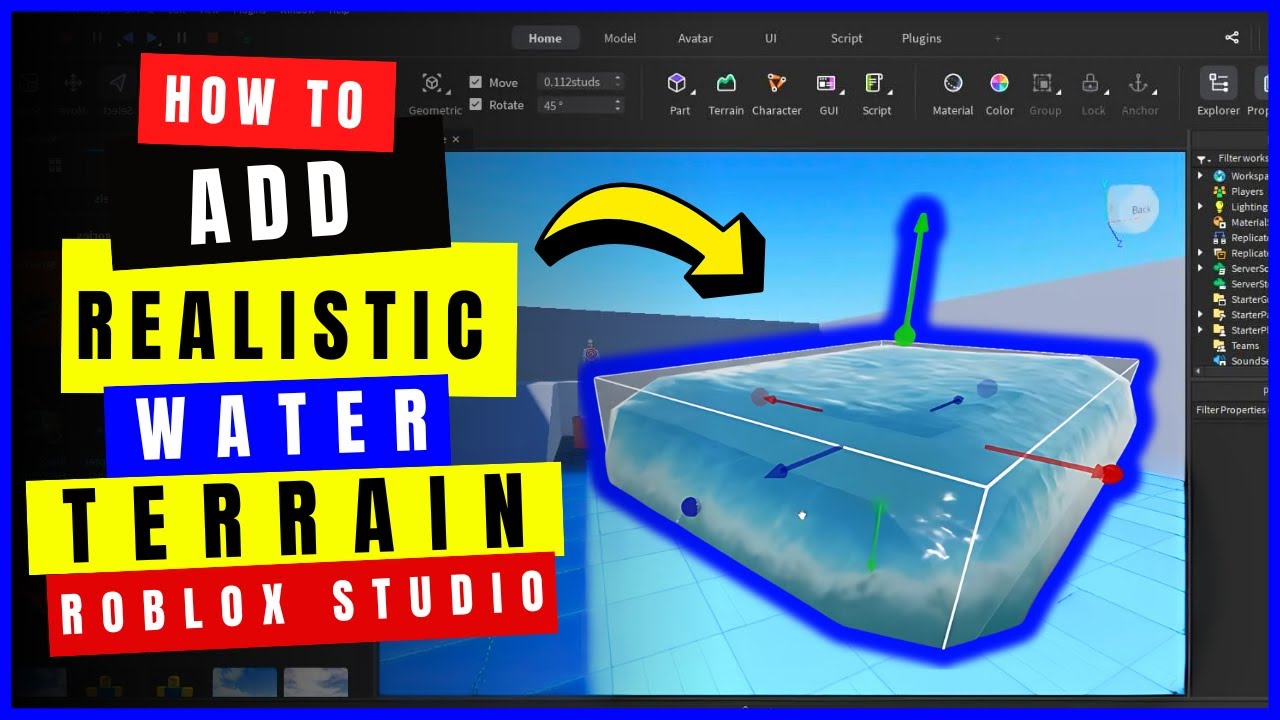



How To Add Realistic Water Terrain In Roblox Studio 2026 Roblox Studio . How To Add Water In Roblox Studio 2025 YouTube . How To Add Working Water ROBLOX YouTube . Water Pumping Incremental 2 Codes For Roblox June 2026 UPDATED MrGuider Roblox Water Pumping Incremental 2 Codes . Roblox Custom Water Tutorial YouTube




ROBLOX Tutorials I How To Add Water YouTube . Water Cooling Roblox How To Use The New Reactor In Hqdefault . Demon Slayer 3D RP How To Get The Summer 2026 Badge Roblox Image 1901 1536x949 . Roblox Get Fat To Splash Codes July 2026 TechWiser Roblox Get Fat To Splash Codes.webp. Roblox Fisch Codes July 2026 TechWiser Roblox Fisch Atlantis Codes.webp


What Is A Good Way To Create Water Besides Terrain Editor Building . H2O Just Add Water Play On Roblox 180DAY. How To Add Water In Roblox Studio YouTube . NEW How To Add Water Physics In Roblox Game In 2025 YouTube . How To Add Realistic Water In Roblox Studio 2025 YouTube Hqdefault




How To Make Realistic Water In Roblox Studio YouTube . Roblox Water Pumping Incremental Codes June 2026 UPDATED MrGuider Roblox Water Pumping Incremental Codes . How To Make Custom Water In Roblox Studio YouTube Hqdefault . How To Add People Roblox Easily Your 2026 Guide . How To Make Water In Roblox Studio YouTube




Roblox H2O Just Add Water Mini Gameplay Showcase W Powers YouTube . How Do I Create Realistic Water With Physics Scripting Support . How To Create Custom Water Physics In Roblox Studio YouTube . How To Update Roblox In 2026 Fix Error Code 280 On PC Mobile Xbox Roblox Update It.webp. Roblox Me Command What Does It Actually Do NoFilter



Improved Water With The Shorelines Beta Page 3 . Roblox Water Bottle Tycoon Thumbnail Stable Diffusion Online 63770c48 E92b 4d48 97ac . What Is The Roblox Assessment Experience On Reddit Oar2 . Animated Water Texture . Definitive Guide To Roblox 2026 TM 07169 Definitive Guide To Roblox 2026




ROBLOX Tutorial Water Tutorial YouTube . H2O Just Add Water Roblox YouTube . Roblox H2O Just Add Water SquishyMain YouTube . Water Showcase Element Battles Roblox YouTube . How To Add Water Into Your Roblox Game YouTube