Ever wondered how a gaming monitor truly delivers those buttery-smooth visuals and lightning-fast responses that make or break your in-game performance? For many of us balancing work, family, and a passion for gaming, understanding the tech behind our setups can feel like another chore. You crave relaxation and skill-building from your favorite titles, not complex hardware manuals. This guide cuts through the jargon to explain exactly how a gaming monitor works, from refresh rates to response times and panel types, empowering you to optimize your current setup or make smart, budget-friendly upgrade decisions. We'll demystify the essential components and technologies, helping you get the most value for your money and stay current without falling for every marketing hype cycle. Discover the secrets to smoother gameplay and a truly immersive experience, all while respecting your valuable time and budget. This article will help you understand the core mechanics to elevate your gaming.
What is the core function of a gaming monitor?
At its heart, a gaming monitor takes the digital output from your computer's graphics card and translates it into visual pixels on the screen, but at an optimized speed crucial for gaming. Unlike standard monitors, gaming displays are engineered for rapid image updates, minimal delay, and smooth motion, ensuring you see every frame as quickly and clearly as possible, giving you a competitive edge and immersive experience.
How does a monitor achieve its high refresh rate?
A gaming monitor achieves high refresh rates by rapidly cycling the display's pixels to show new frames. The internal scalar chip and display panel components are designed to handle and process more frames per second from the graphics card. This means a 144Hz monitor, for instance, can draw a new image 144 times every second, significantly reducing perceived motion blur and making gameplay appear much smoother than a standard 60Hz display.
What exactly is response time and why is it so low on gaming monitors?
Response time is the speed at which a monitor's pixels can change color, typically measured in milliseconds (ms) from gray-to-gray (GtG). Gaming monitors prioritize low response times, often 1ms or 5ms, to minimize ghosting and motion blur. This rapid pixel transition ensures that fast-moving objects on screen remain sharp and clear, providing a crisp visual experience essential for competitive titles where every millisecond counts.
How does Adaptive Sync technology work behind the scenes?
Adaptive Sync, encompassing AMD FreeSync and NVIDIA G-Sync, synchronizes the monitor's refresh rate directly with the graphics card's frame rate. Instead of the monitor refreshing at a fixed rate, it adjusts dynamically to match the GPU's output. This eliminates screen tearing (where multiple frames appear on screen simultaneously) and reduces stuttering, resulting in incredibly fluid gameplay, especially when frame rates fluctuate during intense action sequences.
Why are gaming monitors often more expensive than standard ones?
Gaming monitors come with a higher price tag due to specialized components and advanced technologies designed for performance. These include panels capable of higher refresh rates and lower response times, dedicated Adaptive Sync modules (for G-Sync), advanced backlighting, better color calibration, and robust build quality. The research and development into these gaming-specific features contribute to their premium cost compared to general-purpose displays.
What is input lag and how do gaming monitors minimize it?
Input lag is the delay between performing an action (like clicking your mouse) and seeing that action reflected on screen. Gaming monitors minimize input lag by optimizing their internal processing pathways. They often feature specialized firmware and hardware that prioritize display speed over image processing, ensuring the signal from your GPU reaches the screen with the least possible delay, giving you near-instantaneous feedback in-game.
How do different panel types (TN, IPS, VA) affect a gaming monitor's performance?
Panel type significantly impacts a gaming monitor's characteristics. TN (Twisted Nematic) panels are known for the fastest response times and refresh rates, making them ideal for competitive play, though with poorer color accuracy and viewing angles. IPS (In-Plane Switching) panels offer superior color reproduction and wider viewing angles, great for immersive games, but traditionally had slightly slower response times. VA (Vertical Alignment) panels provide excellent contrast and deep blacks, good for atmospheric games, but can suffer from ghosting at very high refresh rates.
Hey fellow gamers! If you're anything like me, you're juggling a career, family life, and still carving out those precious hours for some digital escapism or competitive glory. We game to unwind, to connect with friends, to build skills, and sometimes, just to lose ourselves in incredible virtual worlds. But let's be honest, nothing ruins that flow faster than screen tearing, input lag, or blurry motion, especially when you're trying to land that headshot or execute a perfect combo. We invest in powerful PCs or next-gen consoles, but often overlook the piece of hardware that actually shows us the game: the monitor.
You might wonder, how does a gaming monitor work its magic to deliver those buttery-smooth visuals and lightning-fast responses? It's not just about a pretty picture; it's about a finely tuned pipeline designed for speed and precision. For the 87 percent of US gamers who play regularly, often dedicating 10+ hours a week to their passion, understanding this tech isn't just for enthusiasts—it's about getting the most out of your valuable gaming time and hard-earned money. With mobile gaming dominating and cross-play becoming the norm, our screens are more critical than ever, whether it's for unwinding with a cozy indie title or climbing the ranks in a competitive shooter. Let's demystify how these essential devices operate, so you can optimize your setup, avoid common frustrations, and truly enjoy your gaming experience without the hype.
What Makes a Gaming Monitor Different from a Regular Monitor?
At its core, a gaming monitor is purpose-built for speed and fluidity, fundamentally changing how does a gaming monitor work compared to a standard office display. While both project images, gaming monitors feature specialized components designed to handle rapid frame rates, minimize input delay, and render motion with exceptional clarity. This isn't just about showing a picture; it's about showing the *latest* picture as quickly and accurately as possible.
- Higher Refresh Rates: Unlike typical 60Hz monitors, gaming displays commonly boast 144Hz, 240Hz, or even 360Hz, meaning they refresh the image on screen many more times per second. This translates to significantly smoother motion.
- Faster Response Times: Gaming monitors prioritize incredibly low response times, often 1ms Gray-to-Gray (GtG), preventing ghosting and motion blur during fast-paced action.
- Adaptive Sync Technology: Features like NVIDIA G-Sync and AMD FreeSync synchronize the monitor's refresh rate with your GPU's frame output, eliminating screen tearing and stuttering.
- Lower Input Lag: They are engineered to minimize the delay between your input (mouse click, controller press) and the action appearing on screen.
These distinctions are crucial for gamers who demand precision and an immersive experience, whether they're streaming to their community on Twitch or just enjoying a new free-to-play title.
How Do Refresh Rate and Response Time Impact My Gameplay?
Understanding refresh rate and response time is key to appreciating how does a gaming monitor work and why it enhances your gameplay. Think of them as the dynamic duo for smooth visuals.
Refresh Rate (Hz): This is how many times your monitor can update the image on screen per second. A 144Hz monitor refreshes 144 times a second, compared to a standard 60Hz monitor's 60 times. The higher the number, the smoother the motion appears. For busy gamers, this means less eye strain during extended sessions and a clearer view of fast-moving targets. If your GPU can push 100+ frames per second (fps), a high refresh rate monitor ensures you actually *see* those frames, giving you a competitive edge and making everything from camera pans to character movement feel incredibly fluid.
Response Time (ms): This measures how quickly a pixel can change from one color to another (typically gray-to-gray). Low response times, like 1ms or 5ms, are critical for eliminating 'ghosting' or 'motion blur'—those annoying hazy trails left by fast-moving objects. In esports titles, where split-second decisions matter, a low response time ensures that what you see is crisp and immediate, preventing visual distractions and allowing for more precise reactions. Balancing life and gaming means every moment counts, so clear visuals are paramount.
What's the Deal with Adaptive Sync (G-Sync and FreeSync)?
Adaptive Sync technology is a game-changer that directly impacts how does a gaming monitor work to deliver a seamless visual experience. Screen tearing and stuttering are common pain points for gamers when their graphics card's frame rate doesn't match the monitor's fixed refresh rate. Adaptive Sync solves this elegantly.
- Screen Tearing: Occurs when your GPU sends a new frame while the monitor is still drawing the previous one, resulting in a horizontal 'tear' across the screen.
- Stuttering: Happens when the monitor has to wait for a new frame, causing a noticeable hitch in motion.
How it Works: Adaptive Sync (NVIDIA G-Sync or AMD FreeSync) allows the monitor's refresh rate to dynamically synchronize with the frame rate output by your graphics card. Instead of the monitor refreshing at a fixed interval, it waits for the GPU to finish rendering a frame and then displays it immediately. This seamless handshake eliminates tearing and significantly reduces stuttering, providing an incredibly fluid and consistent visual experience across a wide range of frame rates. For those of us who appreciate value, many FreeSync monitors offer excellent performance without the premium cost of dedicated G-Sync modules, making high-performance gaming more accessible.
Which Panel Type is Best for Gaming TN IPS or VA?
The panel type profoundly influences how does a gaming monitor work regarding image quality, speed, and viewing angles. Each has its strengths and weaknesses, catering to different gamer priorities:
TN (Twisted Nematic):
Historically the fastest, offering the lowest response times (often 1ms GtG) and highest refresh rates. Ideal for competitive esports where every millisecond counts. The trade-off is poorer color reproduction and narrow viewing angles. If you play a lot of Valorant or CS:GO, a TN panel might still give you that competitive edge, especially on a budget.
IPS (In-Plane Switching):
Known for superior color accuracy, vibrant visuals, and wide viewing angles. Great for immersive, story-driven games, content creation, or just enjoying beautiful game worlds. Modern IPS panels have significantly improved response times (often 1-4ms GtG) and can achieve high refresh rates, making them a popular all-rounder for many gamers balancing visuals with performance.
VA (Vertical Alignment):
Offers excellent contrast ratios and deep blacks, leading to a more impactful image, especially in dark scenes. This makes them fantastic for atmospheric games, movies, and general entertainment. While improving, VA panels can sometimes exhibit a slight 'ghosting' or 'smearing' effect in very fast-moving dark scenes at high refresh rates, though many newer models mitigate this effectively. They strike a balance between TN's speed and IPS's colors.
Choosing depends on your primary gaming style: raw speed (TN), vibrant immersion (IPS), or cinematic contrast (VA).
How Does Input Lag Affect My Gaming Experience?
Input lag is the silent killer of gaming performance, a critical factor in how does a gaming monitor work for responsiveness. It's the total delay between your action (like pressing a button or clicking your mouse) and that action being reflected on the screen. This isn't about refresh rate or response time, but rather the processing time within the monitor itself.
For competitive gamers, even a few milliseconds of input lag can be the difference between a headshot and a miss. It makes gameplay feel sluggish, desynchronized, and frustrating. Imagine aiming for an enemy and your crosshair only moves a fraction of a second later; it disrupts your flow and decision-making. Gaming monitors are engineered with optimized internal electronics and firmware that prioritize speed over extensive image processing (like scaling or enhancement filters found in TVs), significantly reducing this delay. Many gamers use 'Game Mode' on their monitors to bypass unnecessary processing, further cutting down input lag. Minimizing input lag is vital for a direct, responsive connection to your game, enhancing both skill-building and the sheer fun of playing.
What Role Does Resolution Play in Gaming Monitors?
Resolution dictates the clarity and detail of your game world, and it's a huge part of how does a gaming monitor work to create immersion. Measured in pixels (width x height), common resolutions include:
- 1080p (Full HD - 1920x1080): The most common resolution, easy for GPUs to drive at high frame rates. Good for competitive gaming where speed is king and budget is a concern.
- 1440p (QHD - 2560x1440): A sweet spot for many, offering a significant jump in visual fidelity over 1080p without being as demanding as 4K. It balances sharpness with manageable GPU load for high refresh rates.
- 4K (UHD - 3840x2160): Offers incredible detail and sharpness, making games look stunning. However, it requires a very powerful (and often expensive) GPU to maintain high frame rates.
Higher resolutions mean more pixels need to be rendered by your graphics card. This can be a major factor in performance. If you're building a new PC or upgrading on a budget, pairing a 1440p monitor with a mid-range GPU often provides the best balance of visual quality and high frame rates for most modern titles. For casual or social games, 1080p with a high refresh rate might be more than enough to provide a fantastic experience.
How Do HDR and Color Gamut Enhance Visuals?
Beyond refresh rates and response times, modern gaming monitors enhance visual fidelity through High Dynamic Range (HDR) and wide color gamuts, demonstrating how does a gaming monitor work to create truly breathtaking graphics.
HDR (High Dynamic Range):
HDR technology significantly expands the range of brightness and contrast a monitor can display. This means brighter highlights, deeper shadows, and a wider spectrum of colors, leading to a more realistic and impactful image. Games supporting HDR appear more vibrant and lifelike, with details visible in both the darkest and brightest areas of the screen. For an optimal HDR experience, look for monitors with VESA DisplayHDR certifications (e.g., DisplayHDR 600 or 1000), which indicate specific brightness and contrast performance thresholds.
Color Gamut:
This refers to the range of colors a monitor can reproduce. A wider color gamut (e.g., covering a high percentage of DCI-P3 or Adobe RGB) means the monitor can display more shades and more accurate colors. This is especially beneficial for immersive games where rich, nuanced visuals are key, or for content creators who need color accuracy. Combined, HDR and a wide color gamut create a much more engaging and realistic visual experience, making those virtual worlds feel even more alive.
Can a Gaming Monitor Improve My Skills and Performance?
Yes, absolutely! While a monitor won't magically make you a pro gamer, understanding how does a gaming monitor work and choosing the right one can definitely improve your skills and overall performance. Think of it as refining your connection to the game.
- Faster Reactions: Low input lag and high refresh rates mean you see events unfold on screen more quickly and with less delay from your actions. This translates to faster reaction times in competitive scenarios.
- Better Situational Awareness: Smoother motion and clearer visuals (thanks to low response times and Adaptive Sync) allow you to track enemies, projectiles, and environmental cues with greater precision. No more guessing if that blurry smudge was an opponent!
- Reduced Eye Strain: High refresh rates can reduce flicker and make motion feel more natural, which can lessen eye fatigue during long gaming sessions. This helps busy gamers stay focused and perform better for longer periods.
- Increased Immersion: HDR and wide color gamuts can make game worlds more captivating, enhancing your overall enjoyment and making it easier to get lost in the experience.
Ultimately, a good gaming monitor provides a clearer, faster, and more comfortable window into your games, allowing your actual skill to shine without hardware limitations getting in the way. It's an investment in your gaming journey and your relaxation time.
How to Choose the Right Gaming Monitor for My Budget and Playstyle?
Navigating the monitor market can feel overwhelming, but understanding how does a gaming monitor work helps you make informed choices tailored to your budget and playstyle. Here's a quick guide:
Determine Your Budget:
Gaming monitors range from under $200 to over $1000. Set a realistic budget first.
Identify Your Primary Game Genres:
- Competitive Esports (FPS, MOBAs): Prioritize high refresh rates (144Hz+) and low response times (1ms GtG). TN or fast IPS panels are ideal. Adaptive Sync is a must.
- Immersive Single-Player (RPGs, Adventure): Prioritize color accuracy, contrast, and resolution. IPS or VA panels with HDR are great. A 60-120Hz refresh rate is often sufficient.
- Balanced (Mix of Everything): A fast IPS or VA panel at 1440p resolution with 144Hz+ refresh rate and Adaptive Sync offers a fantastic all-round experience.
Match with Your GPU:
Your graphics card determines what frame rates you can achieve. Don't buy a 240Hz 4K monitor if your GPU struggles to hit 60fps at 1080p. Ensure your monitor's Adaptive Sync technology (G-Sync or FreeSync) is compatible with your GPU (NVIDIA or AMD).
Consider Screen Size and Curve:
Personal preference largely dictates this. 24-27 inches is common for competitive play, while larger sizes or ultrawides enhance immersion. Curved screens can offer a more enveloping experience.
Check Connectivity:
Ensure it has the necessary ports (DisplayPort, HDMI) for your PC or console and can support the desired resolution/refresh rate combo (DisplayPort is generally preferred for high refresh rates).
Remember, value for money often means finding the sweet spot where performance meets your specific needs without overspending on features you won't fully utilize. Staying current means making informed choices, not just buying the latest hype.
What are Common Setup Issues and How Do I Fix Them?
Even with the best gaming monitor, setup issues can crop up. Knowing how does a gaming monitor work can help you troubleshoot. Here are some common pain points for busy gamers and their solutions:
No Signal / Black Screen:
First, check all cable connections (power, DisplayPort/HDMI) at both the monitor and your PC/console. Try a different port on your GPU or monitor. Ensure the monitor's input source is correctly selected via its On-Screen Display (OSD).
Refresh Rate Not Maxed Out:
Your monitor might default to 60Hz. Right-click on your desktop, go to Display Settings > Advanced Display Settings > Display Adapter Properties, and select the highest refresh rate under the 'Monitor' tab. Also, check in-game settings. Ensure your cable (DisplayPort 1.2+ or HDMI 2.0+) supports the desired refresh rate/resolution.
Screen Tearing / Stuttering:
Make sure Adaptive Sync (G-Sync or FreeSync) is enabled in both your monitor's OSD and your graphics card's control panel (NVIDIA Control Panel or AMD Radeon Software). Ensure your frame rate is within the monitor's Adaptive Sync range.
Ghosting / Motion Blur:
Adjust the 'Overdrive' or 'Response Time' setting in your monitor's OSD. Start with a medium setting and increase until ghosting is minimized without introducing 'inverse ghosting' (a white halo effect). This often requires a bit of trial and error.
Incorrect Colors / Washed Out Image:
If using HDR, ensure it's enabled in both Windows Display Settings and your game. Sometimes, Windows HDR can make SDR content look bad; toggle it off when not using HDR content. Calibrate your monitor using Windows' built-in tool or dedicated calibration hardware if available. Check if your monitor is in the correct color mode (e.g., sRGB, Gaming).
These quick fixes can save you valuable gaming time and ensure you're getting the performance you paid for.
Conclusion
Understanding how does a gaming monitor work is more than just tech trivia—it's about empowering yourself to get the most out of your gaming passion, especially when you're balancing it with life's other demands. From high refresh rates and lightning-fast response times to adaptive sync and various panel technologies, each component plays a crucial role in delivering a smooth, immersive, and responsive experience. By demystifying these features, you can make smarter purchasing decisions, optimize your current setup, and tackle common frustrations head-on.
Your gaming monitor is the window to your virtual worlds, and knowing its inner workings ensures that window is crystal clear, responsive, and free of distractions. So, go forth and game on, knowing your gear is truly working for you, enhancing those precious moments of relaxation, skill-building, and social connection. What's your biggest gaming challenge? Comment below! We're all in this together, striving for that perfect balance of life and play.
FAQ Section
What is a good refresh rate for gaming?
A good refresh rate for gaming is generally 144Hz or higher. While 60Hz is basic, 144Hz provides significantly smoother motion, reducing eye strain and improving responsiveness for most games. For competitive esports, 240Hz or 360Hz monitors offer an even greater edge, assuming your PC can maintain consistently high frame rates.
Is a higher response time better?
No, a *lower* response time is better. Response time measures how quickly pixels change color; lower numbers (e.g., 1ms Gray-to-Gray) mean faster transitions. This minimizes ghosting and motion blur in fast-paced games, ensuring that moving objects appear sharp and clear, which is crucial for precise aiming and tracking.
Do I really need Adaptive Sync?
While not strictly mandatory, Adaptive Sync (G-Sync or FreeSync) is highly recommended for a superior gaming experience. It eliminates screen tearing and reduces stuttering by synchronizing the monitor's refresh rate with your GPU's frame rate. This results in incredibly fluid and artifact-free gameplay, especially when frame rates fluctuate, enhancing both immersion and competitive performance.
What cables should I use with my gaming monitor?
For most modern gaming setups, DisplayPort is the preferred cable, especially for high refresh rates (144Hz+) and resolutions (1440p+). HDMI 2.0 or newer can also support high refresh rates at 1080p and 1440p, but DisplayPort generally offers more bandwidth and better compatibility with Adaptive Sync technologies. Always use the latest version of the cable that your monitor and GPU support.
How often should I upgrade my gaming monitor?
Monitor upgrade cycles vary but typically range from 3 to 7 years. You might consider upgrading when new technologies like higher refresh rates (e.g., from 144Hz to 240Hz), better panel types (e.g., TN to fast IPS), or superior HDR implementations become widely available and affordable, or when your current monitor no longer meets your gaming needs or is showing signs of wear.
Can I use a gaming monitor for work too?
Absolutely! Many gamers use their high-performance monitors for both work and play. Features like high resolution, vibrant colors (especially with IPS panels), and eye-care technologies make them excellent for productivity. While an office monitor doesn't need 144Hz, the benefits of a crisp, clear display often translate well to professional tasks, making a gaming monitor a versatile investment for a balanced lifestyle.
What is 'Game Mode' on a monitor?
'Game Mode' on a monitor is a preset setting that optimizes the display for gaming. It typically reduces input lag by minimizing internal image processing and may adjust color saturation, contrast, or sharpness to enhance visibility in specific game types. While it can improve responsiveness, sometimes the default color profiles might not be to everyone's liking, so customization might be needed.
Gaming monitors leverage high refresh rates, low response times, and adaptive sync technologies like G-Sync or FreeSync to provide smoother, tear-free visuals. Panel types such as IPS, TN, and VA each offer different balances of color accuracy, viewing angles, and speed. They process digital signals from your GPU, convert them to visual pixels, and rapidly update the display to reduce input lag and motion blur, crucial for competitive gaming. These specialized features ensure an optimized visual pipeline from your graphics card to your eyes, giving gamers an edge in responsiveness and clarity.
35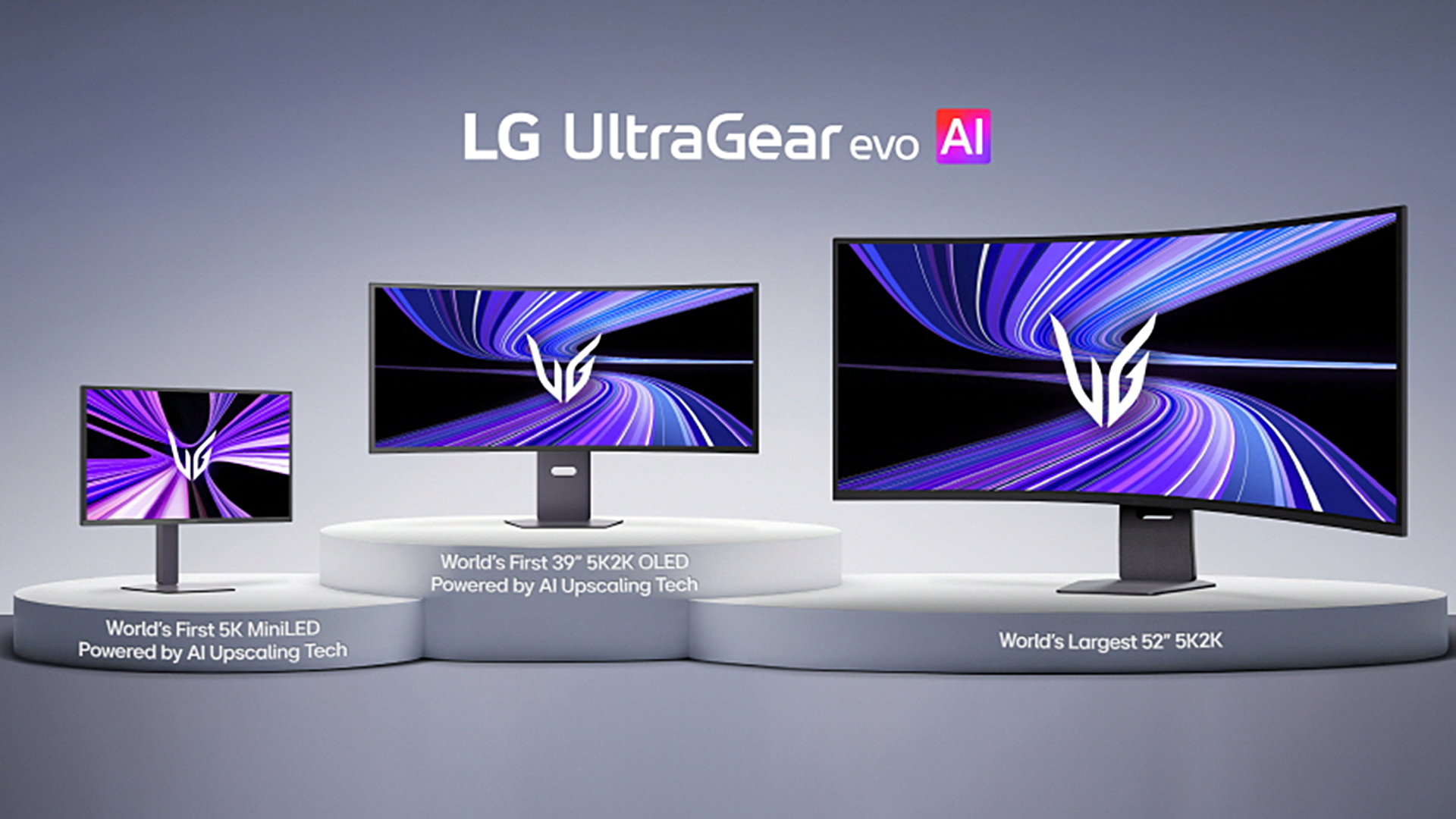
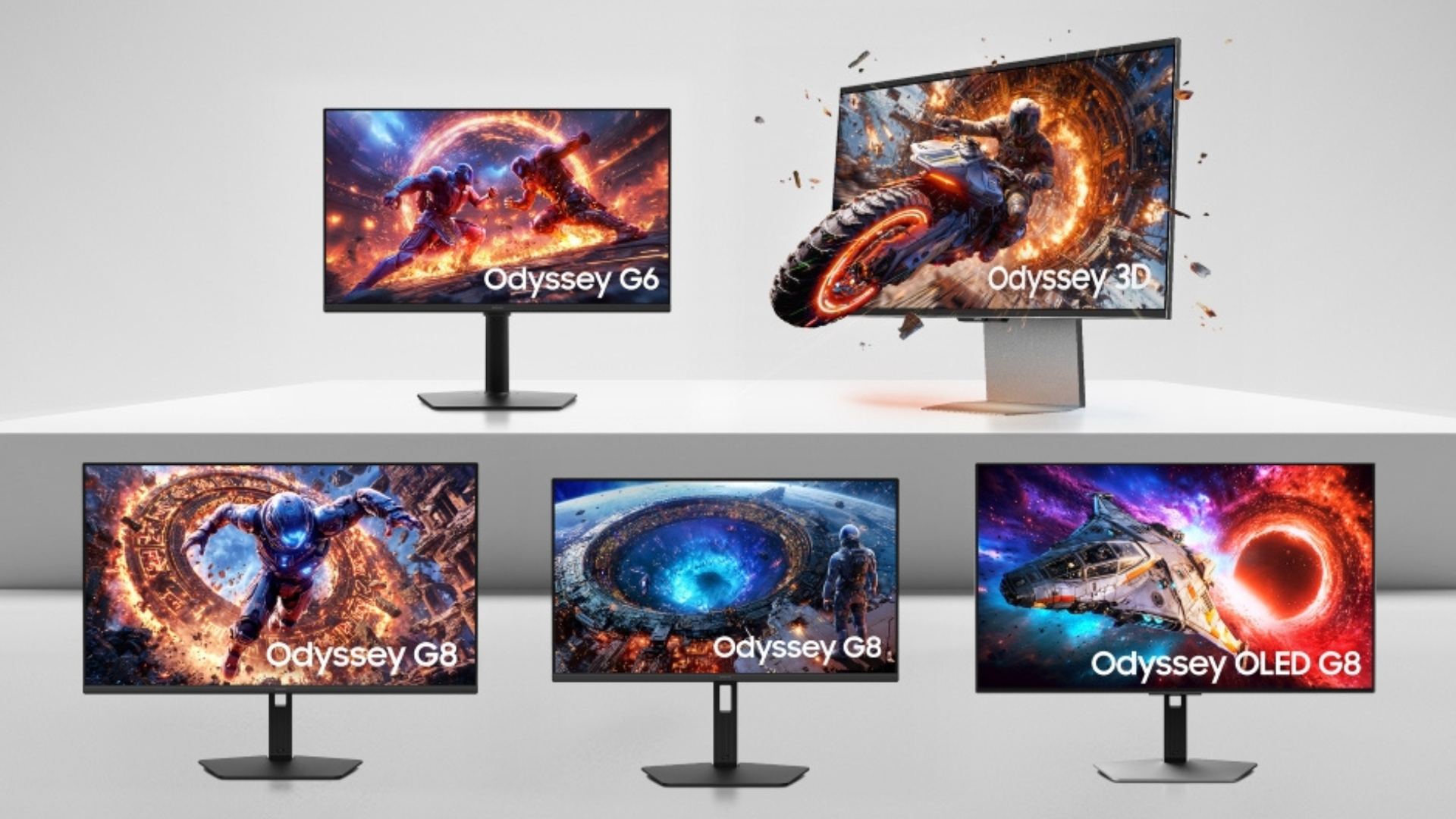
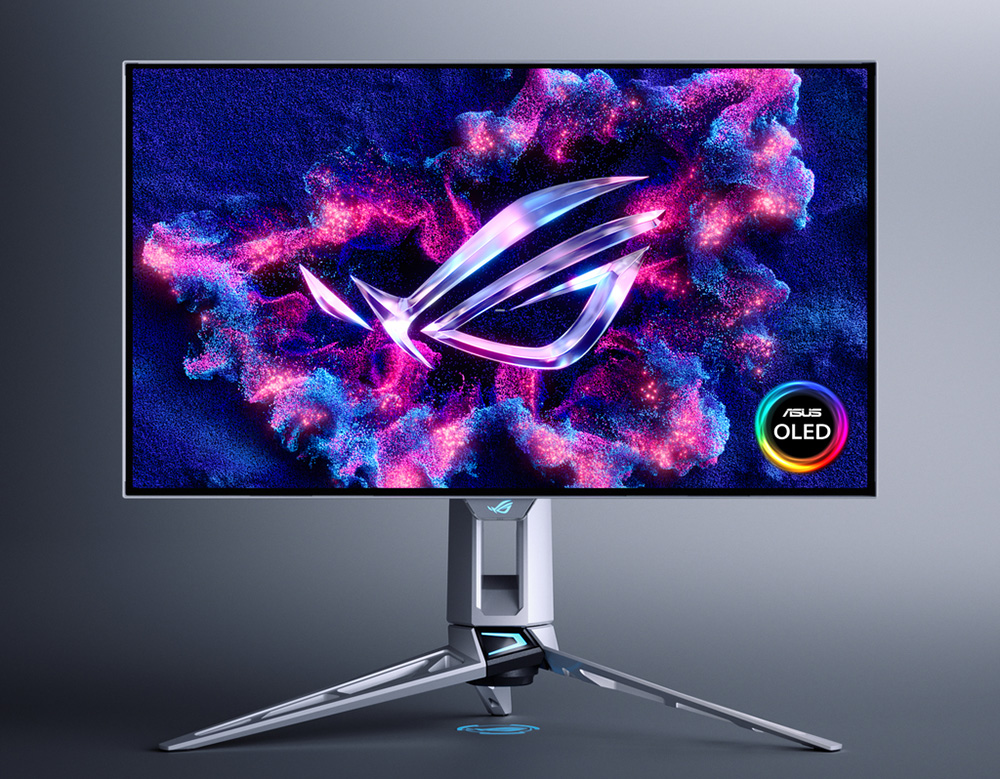

Samsung S Impressive 49 Inch Odyssey OLED G9 Gaming Monitor Drops By . Samsung S New Odyssey 3D 6K Monitor Takes Center Stage At CES 2026 . Chinese ESports Firm Worked With AMD On 1 000 Hz Gaming Monitor Primed . The Best Recommended Gaming Monitors 2026 TFTCentral ROG Swift OLED PG27AQWP Bottom . Best Nvidia Pulsar Monitors 2026 PC Guide Best Pulsar Gaming Monitors


How To Choose A Gaming Headset In 2026 Competitive FPS Immersion And. ASUS XG27ACDNG Review 2026 Best 1440p 360Hz OLED Best Monitors For FPS Games . Xiaomi Curved Gaming Monitor G34WQi 2026 Debuta En Australia Con 180 Hz Curved Gaming Monitor G34WQi 2026 Portada . Xiaomi Launches G24i 2026 And G27i 2026 Gaming Monitors In The Xiaomi Launches G24i 2026 And G27i 2026 Gaming Monitors In The Philippines 1024x640 . Mini LED Gaming Monitor G Pro 27Qi 2026 Xiaomi Prezentuje Nowy Monitor Xiaomi Mini Led Gaming G Pro 27qi 2026 Monitor Kv


LG Monitors Buying Guide 2026 UltraGear Vs UltraWide Vs UltraFine Vs OLED AOC Monitors Buying Guide 2026 Main . ASUS PG27AQN Review 2026 Best Esports Gaming Monitor Best 32 Inch Monitors . 2026 4K Gaming Monitors GPU Balance And Best Settings 2 3 1 . Best Gaming Monitor In 2025 For Every Budget And Play Style Stuff Odyssey Ark PR Dl6 . LG UltraGear Evo Gaming Monitor Lineup Announced Ahead Of CES 2026 27


Xiaomi Gaming Monitor G24i 2026 27 10 2025 Xiaomi Gaming Monitor G24i 2026 3.webp. The Best Budget Gaming Monitors 2026 GamesRadar . Best Monitors For Work Play Complete 2025 Guide Top 3 Ultrawide Monitors For Gaming In 2026 . AOC AG276QZD2 Review 2026 Cheapest OLED Gaming Monitor Best Monitors Under 400 USD . Best Gaming Monitors 2026 Swift OLED PG27AQDM 18 Of 26


Does Haste Work Update 06 2026 Is A 240hz Monitor Worth It For Gaming 3 . Best Nvidia Pulsar Monitors 2026 PC Guide BenQ RD320U Review . Best Gaming Monitors 2026 Swift OLED PG27AQDM 20 Of 26 . ASUS PG27AQDP Review 2026 Best OLED Gaming Monitor Best USB C Gaming Monitors 600x338 . KTC 27M1 Review 2026 Everything You Need To Know Best Gaming Monitors


Which PC Gaming Monitor Truly Elevates Your Play Gaming Monitor Guide 2026 Everything You Need To Know11. What Is An Online Fish Game And How Does It Work What Is An Online Fish Game And How Does It Work.webp. LG Monitors Buying Guide 2026 UltraGear Vs UltraWide Vs UltraFine Vs OLED ASUS Monitors Explained Overview Main . 15 Best Gaming Monitors Of 2026 For Smoothest Gameplay And Stunning Top Gaming Monitors 2026 Moiql . MSI Unveils World S First Mini LED Gaming Monitor At CES 2026 109565 988 Msi Unveils Worlds First Mini Led Gaming Monitor At Ces 2026


Redmagic GM001J Review 2026 Mini LED HDR Gaming Monitor Best Monitors With Built In KVM Switch 1024x576 . The Best Gaming Monitors For 2026 The Best Gaming Monitors For 2026 Sd33.1200 . Xiaomi G24i 2026 G27i 2026 Gaming Monitors Launched Globally Xiaomi Xiaomi Gaming Monitor G24i 2026 G27i 2026 Q2XM0.webp. Acer Debuted 3 New Gaming Monitors At CES 2026 Should You Upgrade Acer Debuted 3 New Gaming Monitors At Ces 2026 Should You Up 69b1.1248 . Xiaomi Launches G24i 2026 And G27i 2026 Gaming Monitors In PH IMG 3893 2048x1234