Is it hard to map an Xbox 360 controller to keyboard?
Mapping an Xbox 360 controller to keyboard inputs is generally straightforward, especially with user-friendly software. While it requires initial setup and configuration, most programs offer intuitive interfaces. Basic mapping can be done quickly, and advanced features for customization become accessible with a little practice. The process is designed to be accessible for the average PC gamer looking to enhance their experience.
What software is best for mapping an Xbox 360 controller to keyboard?
Popular choices for mapping an Xbox 360 controller to keyboard include AntiMicroX (free, open-source, versatile) and Xpadder (paid, robust, user-friendly). JoyToKey is another lightweight, free option for basic remapping. The best choice often depends on your budget, the level of customization needed, and your operating system. Each offers reliable performance for PC gaming.
Can I use my Xbox 360 controller on any PC game after mapping?
Yes, after successfully mapping your Xbox 360 controller to keyboard inputs, you can use it with virtually any PC game that supports keyboard and mouse. The mapping software translates controller actions into keyboard/mouse signals, making the game believe you are using those traditional inputs. This is ideal for older titles or games without native gamepad support.
How do I set up a wireless Xbox 360 controller for PC mapping?
To set up a wireless Xbox 360 controller for PC mapping, you first need the Xbox 360 Wireless Gaming Receiver for Windows. Plug this receiver into a USB port on your PC, allow drivers to install, then sync your controller to the receiver. Once connected, your wireless controller will be recognized by mapping software just like a wired one.
What if my mapped controller buttons do not work in a game?
If your mapped controller buttons are not working in a game, try running your mapping software as an administrator. This often resolves permission issues. Also, check the game's settings to see if you can disable native controller support, forcing it to accept only keyboard inputs. Ensure there are no conflicts with other input devices or background applications.
How to Map Xbox 360 Controller to Keyboard on PC?
Many PC gamers find themselves wishing for the comfort and precision of an Xbox 360 controller, even when playing titles that natively only support keyboard and mouse input. Thankfully, with the right tools and a little know-how, you can effectively map your Xbox 360 controller to keyboard commands, opening up a world of possibilities for your gaming library.
This guide will walk you through the process of setting up and customizing your Xbox 360 controller to emulate keyboard and mouse inputs, ensuring you can play virtually any PC game with your preferred gamepad. We will explore various software options and provide clear, hands-on steps to get you gaming smoothly.
Understanding Xbox 360 Controller Mapping Fundamentals
Mapping an Xbox 360 controller to keyboard inputs involves using specialized software to translate controller signals into keyboard presses or mouse movements. This is particularly useful for older PC games, indie titles, or applications that lack native gamepad support.
The underlying principle is straightforward: when you press a button on your Xbox 360 controller, the mapping software intercepts that input and sends a corresponding keyboard or mouse command to your computer. This allows you to navigate menus, control characters, and perform actions just as if you were using a keyboard and mouse.
The primary search intent here is to find practical, actionable steps for making an Xbox 360 controller function as a keyboard on a PC. Users want to bridge the gap between console-style comfort and PC-exclusive gameplay, often seeking solutions for specific games or general system-wide control. Our goal is to provide that clear pathway.
Why Map Your Controller?
There are several compelling reasons why U.S. gamers choose to map their Xbox 360 controller to keyboard inputs.
First, it enhances comfort during long gaming sessions, providing a more ergonomic alternative to a keyboard and mouse for certain game genres. Imagine playing a classic RPG or a strategy game from your couch; mapping makes it possible.
Second, it grants accessibility to games without native controller support, allowing you to enjoy a wider range of PC titles with your preferred hardware. Many older or niche games simply do not recognize gamepads, making mapping an essential workaround. This opens up your entire Steam library.
Lastly, mapping offers unparalleled customization, letting you tailor controls precisely to your play style for a truly personalized gaming experience. You can assign complex macros or specific key combinations to single button presses, giving you a competitive edge or simply making your gaming more intuitive.
| Benefit | Description | Impact on Gameplay |
|---|---|---|
| Enhanced Comfort | Ergonomic design reduces hand strain during extended play. | Longer, more enjoyable gaming sessions. |
| Wider Game Compatibility | Play titles lacking native controller support. | Access to a larger PC game library with a gamepad. |
| Customization Options | Personalize button layouts and assign complex actions. | Optimized control scheme for individual play styles. |
| Accessibility | Offers an alternative input method for users who prefer gamepads. | Broader appeal and usability for all players. |
Popular Software for Xbox 360 Controller to Keyboard Mapping
Several robust software options are available to help you map your Xbox 360 controller to keyboard commands. Each tool offers a unique set of features and interface styles, catering to different user preferences. It is important to consider your specific needs and technical comfort level when choosing.
Some programs are more beginner-friendly with intuitive graphical interfaces, while others provide deeper customization but might have a steeper learning curve. Most tools support both wired and wireless Xbox 360 controllers, provided the necessary drivers are installed on your Windows PC. Taking the time to select the right software can make the mapping process much smoother.
The choice of software largely depends on how much flexibility and functionality you require. For simple remapping, a basic tool might suffice, but for intricate profiles and conditional mappings, a more advanced solution will be necessary. Always download software from reputable sources to ensure security and proper functionality.
Xpadder: A Classic Choice
Xpadder is a well-known utility that allows you to map keyboard keys and mouse movements to your Xbox 360 controller. It is highly regarded for its user-friendly interface and robust profile management. Once configured, you can save specific profiles for different games.
This means you do not have to remap everything each time you switch games; just load the relevant profile. Xpadder also supports assigning multiple actions to a single button, such as a short press for one action and a long press for another. This level of detail makes it a favorite among many gamers.
However, Xpadder is not free software, though it is often considered worth the small investment for its reliability and features. It works by creating a virtual keyboard and mouse, ensuring compatibility across a wide range of PC titles. Setting up Xpadder usually involves selecting your controller, creating a new profile, and then assigning keyboard/mouse actions to each button and analog stick.
AntiMicroX: The Open-Source Alternative
AntiMicroX is a free and open-source program that provides similar functionality to Xpadder. It is an excellent choice for users looking for a no-cost solution with powerful mapping capabilities. AntiMicroX boasts a clean interface and supports multiple controllers.
It is particularly praised for its flexibility in creating profiles and its ability to handle complex mappings, including macros and turbo functions. Being open-source, it benefits from community contributions and regular updates, which can be a significant advantage. It is a fantastic option for anyone keen on mapping their Xbox 360 controller to keyboard inputs without spending a dime.
Setting up AntiMicroX involves recognizing your controller, graphically assigning keyboard keys or mouse functions to buttons and axes, and saving the profile. It is compatible with Windows, Linux, and macOS, making it a versatile option for cross-platform users. Its active development ensures good support for newer operating systems and features.
| Software | Cost | Key Features | Ease of Use | Compatibility |
|---|---|---|---|---|
| Xpadder | Paid (one-time) | Extensive profile management, multiple actions per button, intuitive UI. | Moderate | Windows XP/Vista/7/8/10 |
| AntiMicroX | Free (Open Source) | Flexible mapping, macros, turbo functions, cross-platform. | Moderate | Windows, Linux, macOS |
| JoyToKey | Free (with limitations) | Simple, lightweight, portable, ideal for basic mapping. | High | Windows XP/Vista/7/8/10 |
| reWASD | Paid (subscription/lifetime) | Advanced remapping, Xbox Elite/DualSense support, community profiles. | Moderate | Windows 7/8/10/11 |
Step-by-Step Guide: Mapping Your Xbox 360 Controller with AntiMicroX
Here’s a detailed walkthrough using AntiMicroX, a popular open-source tool, to map your Xbox 360 controller to keyboard commands. This method offers robust functionality without any cost.
Before you begin, ensure your Xbox 360 controller is properly connected to your PC and its drivers are installed. For wired controllers, simply plug it in; for wireless, you'll need the Xbox 360 Wireless Gaming Receiver. Windows usually handles driver installation automatically.
If you encounter any driver issues, a quick restart often resolves them, or you may need to manually update drivers through Device Manager. Once your controller is recognized by Windows, you are ready to proceed with the mapping software.
1. Download and Install AntiMicroX
Visit the official AntiMicroX GitHub page or a trusted software repository to download the latest version. Choose the installer appropriate for your Windows operating system (32-bit or 64-bit). Run the installer and follow the on-screen prompts; it is a straightforward process.
After installation, launch AntiMicroX. You should see a window displaying tabs for any connected controllers. If your Xbox 360 controller is connected, it should appear here, usually labeled as 'Controller 1' or 'Xbox 360 Controller'.
If your controller does not appear, try reconnecting it or restarting the software. Ensure no other controller mapping software is running in the background, as this can sometimes cause conflicts and prevent proper detection. A clean slate often works best.
2. Create a New Profile and Map Buttons
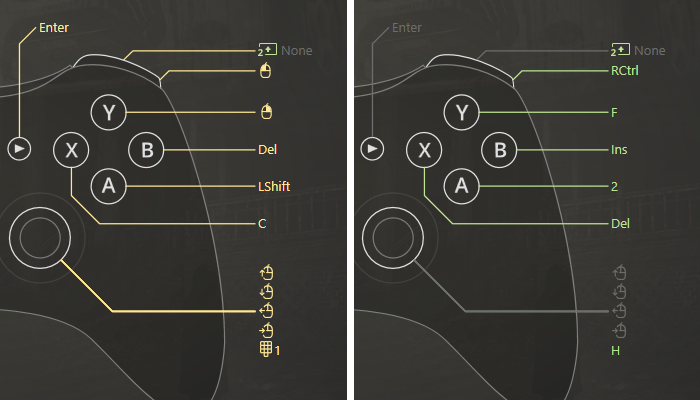
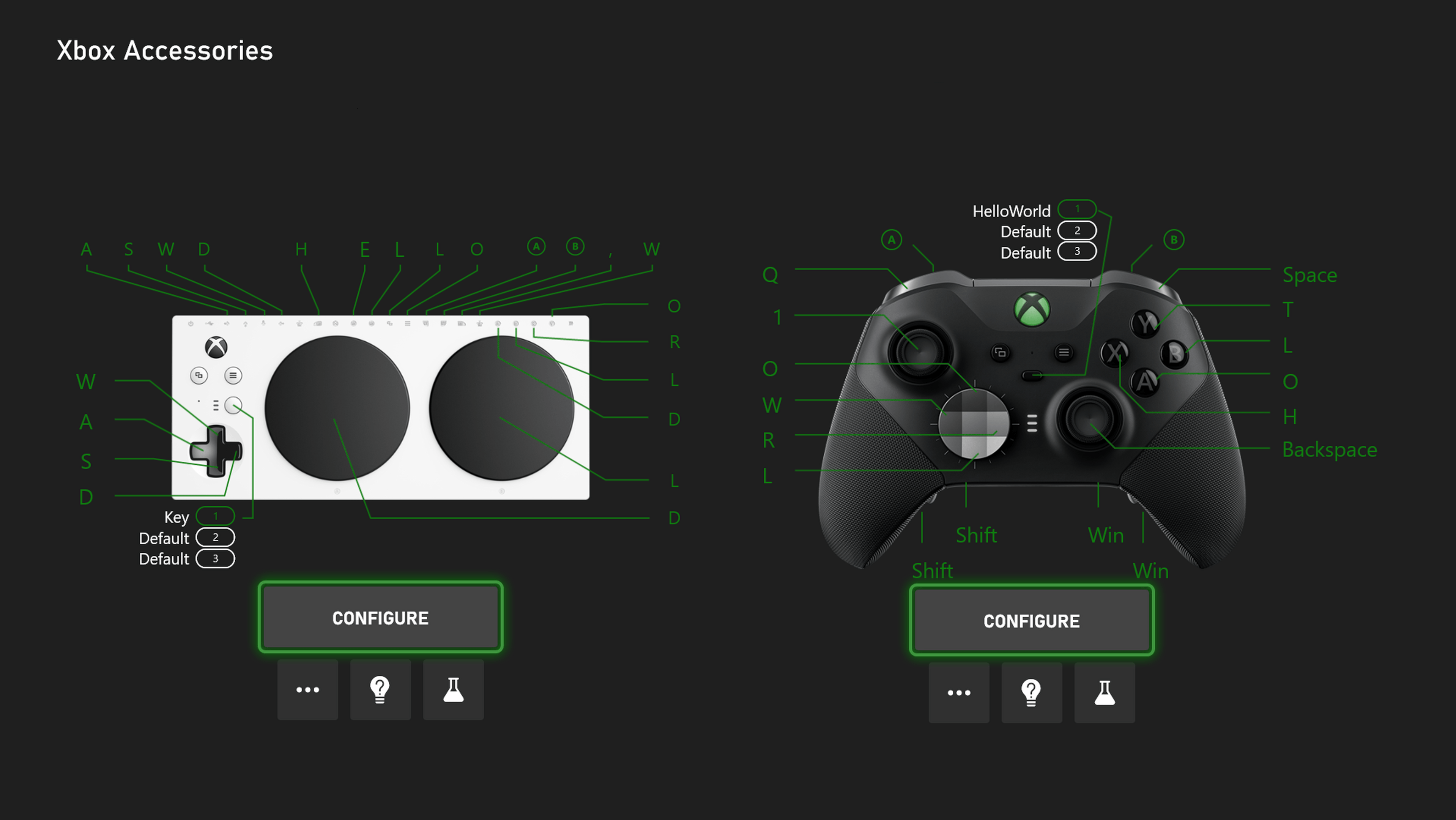
Once your controller is detected, click on the 'Controller 1' tab (or the relevant tab for your Xbox 360 controller). This will bring up a graphical representation of your controller's buttons and axes. Click on a button or move an analog stick on your actual controller, and the corresponding input in AntiMicroX will highlight.
To map a button, click on its highlighted representation in the software. A new window will pop up, allowing you to assign a keyboard key, mouse movement, or even a macro. For instance, click the 'A' button, then press 'Spacebar' on your keyboard to assign 'jump' functionality. You can also assign mouse clicks or scroll wheel actions here.
Repeat this process for all the buttons and analog stick directions you wish to map. Take your time to consider which keyboard keys make the most sense for each controller input based on the game you intend to play. Creating a logical layout from the start will save you headaches later on.
3. Configure Analog Sticks and Triggers
Mapping analog sticks requires assigning keyboard directions (W, A, S, D) or mouse movement. Click on an analog stick's directional input (e.g., 'Left Stick Up') and assign 'W'. Do this for all eight directions of both analog sticks. For mouse control, you can assign 'Mouse Left', 'Mouse Right', etc., to the analog stick movements.
Triggers (LT and RT) are typically mapped to mouse clicks or additional keyboard keys. Click the trigger in AntiMicroX, then assign your desired action. For example, 'RT' could be 'Left Mouse Click' for firing in a shooter game. Remember to fine-tune sensitivity settings if available in AntiMicroX for precise control. Experimentation here is key.
Some games might benefit from having the triggers act as discrete keyboard keys rather than mouse buttons. Think about specific actions like sprinting or reloading, which might be better suited to a keyboard key. AntiMicroX often allows for dead zone adjustments on analog sticks, which helps prevent unwanted inputs if your controller has a slight drift.
4. Save and Load Your Profile
After you have mapped all your desired inputs, it is crucial to save your configuration as a profile. Click the 'Save As' button in AntiMicroX and give your profile a descriptive name, perhaps related to the game it is for (e.g., 'Old RPG Profile'). This saves an XML file containing all your settings.
You can create multiple profiles for different games or even different play styles within the same game. To load a profile, simply open AntiMicroX, select the controller tab, and then click 'Load' to select your saved profile. This makes switching between games with unique control schemes incredibly efficient.
Remember to keep AntiMicroX running in the background while you are playing your game for the mapping to take effect. You can minimize it to the system tray. If you encounter any issues, try restarting AntiMicroX or checking your profile settings for any misconfigurations. Regular saving ensures your hard work is never lost.
| Mapping Action | Description | Typical Assignment |
|---|---|---|
| Button Mapping | Assigns a keyboard key or mouse click to a controller button. | 'A' to Spacebar, 'X' to E |
| Analog Stick Mapping (Movement) | Assigns directional keyboard keys (WASD) to stick movement. | Left Stick Up to W, Left Stick Right to D |
| Analog Stick Mapping (Mouse) | Assigns mouse movement to analog stick deflection. | Right Stick to Mouse X/Y Axis |
| Trigger Mapping | Assigns keyboard keys or mouse clicks to LT/RT. | Right Trigger to Left Mouse Button |
| Macro Creation | Assigns a sequence of key presses to a single button. | 'Y' to Shift+F5 (for a quick save) |
Common Pitfalls and Troubleshooting Xbox 360 Controller Mapping
While mapping your Xbox 360 controller to keyboard inputs is generally straightforward, users can sometimes encounter issues. Being aware of common pitfalls and knowing how to troubleshoot them can save you a lot of frustration. Most problems stem from software conflicts or incorrect configurations.
A common issue is the controller not being detected by the mapping software. This often points to driver problems or conflicts with other gaming peripherals. Always ensure your drivers are up-to-date and the controller is recognized by Windows before launching mapping software.
Another frequent hiccup involves mapped inputs not registering in-game. This might be due to the game capturing raw controller input before the mapping software can translate it. Running the mapping software as an administrator can often resolve these permission-related issues.
Controller Not Detected or Responding
If your Xbox 360 controller is not appearing in AntiMicroX or other mapping software, first verify it is correctly connected to your PC. Check the USB port for physical damage or try a different port. For wireless controllers, ensure your Xbox 360 Wireless Gaming Receiver is plugged in and drivers are installed.
Open Windows Device Manager and look under 'Xbox 360 Peripherals' or 'Human Interface Devices' to confirm the controller drivers are installed without errors. If you see a yellow exclamation mark, you may need to update or reinstall the drivers. Sometimes, simply restarting your computer can clear up temporary connection issues.
Also, ensure you do not have multiple controller mapping applications running simultaneously. These programs can conflict with each other, preventing proper detection. Close any other similar software before trying to configure your Xbox 360 controller. This ensures a dedicated connection.
Mapped Inputs Not Working In-Game
When your mapped controls do not register in-game, the issue might be related to how the game handles input. Some games prioritize raw controller input, bypassing the keyboard emulation. Try running AntiMicroX (or your chosen mapping software) as an administrator to give it higher priority.
Another tip is to disable any native controller support within the game's settings if available. This forces the game to rely solely on keyboard and mouse inputs, allowing your mapped controller actions to take effect. Experiment with different in-game input options to find the sweet spot.
Finally, check your game's keybinds. If you mapped a controller button to 'E' and the game's action for 'E' is different than what you expect, the issue lies with the game's configuration, not the mapping software. Adjust either the game's keybinds or your controller profile accordingly. Consistency is key.
Troubleshooting Analog Stick Drift or Jitter
Analog stick drift, where the in-game camera or character moves without input, is a common hardware issue but can sometimes be mitigated through software. Within AntiMicroX, you can adjust the dead zones for your analog sticks. Increasing the dead zone can prevent minor, unwanted inputs from registering.
Jitter, or inconsistent input, might indicate a hardware problem with the controller itself or interference if you are using a wireless setup. Try connecting the controller with a different USB cable or reducing wireless interference by moving closer to the receiver. Sometimes, older controllers simply develop these issues over time.
If software adjustments do not resolve drift or jitter, the controller might be nearing the end of its life cycle. In such cases, replacing the controller might be the most reliable solution. For intermittent issues, ensure your PC's power settings are not causing USB ports to power down erratically. Keep drivers updated for optimal performance.
| Issue | Potential Cause | Solution | Difficulty |
|---|---|---|---|
| Controller Not Detected | Driver issues, faulty USB port, software conflict. | Update drivers, try new port, close other mapping apps. | Easy-Moderate |
| Mapped Inputs Not Registering | Game input priority, incorrect admin rights. | Run mapping software as administrator, disable in-game controller support. | Moderate |
| Analog Stick Drift/Jitter | Hardware wear, insufficient dead zone, interference. | Adjust dead zones in software, check for interference, consider replacement. | Moderate-Hard |
| Laggy Input | System performance, wireless interference. | Close background apps, ensure clear line of sight to receiver (wireless). | Easy-Moderate |
Frequently Asked Questions About Xbox 360 Controller Mapping
Here are some commonly asked questions regarding mapping an Xbox 360 controller to keyboard inputs, providing quick answers to help you get started.
Can I use my Xbox 360 wireless controller for PC mapping?
Yes, you can absolutely use your Xbox 360 wireless controller for PC mapping. You will need the official Xbox 360 Wireless Gaming Receiver for Windows, which plugs into a USB port on your PC. Once the receiver is installed and the controller is synced, it will function just like a wired Xbox 360 controller for mapping purposes, allowing you to enjoy untethered gaming.
Is it legal to map an Xbox 360 controller to keyboard?
Yes, mapping an Xbox 360 controller to keyboard inputs is completely legal. It is a form of input remapping and customization that enhances accessibility and player preference. It does not alter game files or provide an unfair advantage in most single-player or casual multiplayer contexts. However, always check specific game rules for competitive scenarios, as some anti-cheat systems might flag unusual input methods.
Will mapping software cause input lag?
Most modern controller mapping software introduces minimal to no noticeable input lag. The translation process is extremely fast. Any perceived lag is more likely due to overall system performance, wireless interference, or high dead zone settings. Keeping your PC optimized and using a direct USB connection for wired controllers can further minimize potential delays.
Can I map specific keyboard keys for different games?
Absolutely! This is one of the biggest advantages of using mapping software like AntiMicroX or Xpadder. You can create and save multiple profiles, each tailored to a specific game's control scheme. When you switch games, simply load the corresponding profile. This allows for highly customized and efficient control setups across your entire gaming library, enhancing your experience.
Do I need to run the mapping software every time I play?
Yes, the mapping software must be running in the background for your controller mappings to be active. It usually sits quietly in your system tray, consuming minimal resources. You only need to launch it once, load your desired profile, and then minimize it. Closing the software will disable your custom controller-to-keyboard mappings.
What if my Xbox 360 controller is not recognized by my PC?
If your Xbox 360 controller is not recognized, first try a different USB port or restart your computer. Ensure you have the correct drivers installed; Windows often installs these automatically. For wireless controllers, confirm the wireless receiver is properly connected and synced. You might also need to manually update or reinstall the Xbox 360 controller drivers through Windows Device Manager if issues persist.
Mapping your Xbox 360 controller to keyboard commands truly opens up new avenues for PC gaming. By following these steps and troubleshooting common issues, you can enjoy a broader range of games with the comfort and familiarity of your favorite gamepad. Dive in, experiment with different settings, and personalize your gaming experience to the fullest.
Visual Documentation